Step-by-Step OpenClaw Setup for People Who
A current OpenClaw setup guide for non-technical founders. Install the CLI, run onboarding, connect one channel, and avoid the stale advice still floating…
Feb 4, 2026
6 min read
Updated Apr 17, 2026
TL;DR: OpenClaw is now set up through
openclaw onboard --install-daemon, not the olderclawdbotorcurl | bashflows. As of April 2026, the official repo recommends Node 24 or Node 22.16+, supports macOS/Linux/Windows via WSL2, and treats BlueBubbles as the recommended iMessage path. Heads up before you start: on April 4, 2026, Anthropic blocked Claude Pro/Max subscriptions from authenticating third-party tools like OpenClaw via OAuth. There’s a clean workaround — piping OpenClaw through the localclaudeCLI that’s already authenticated on your machine — and the setup docs cover it. See the note below before you pick a model provider.
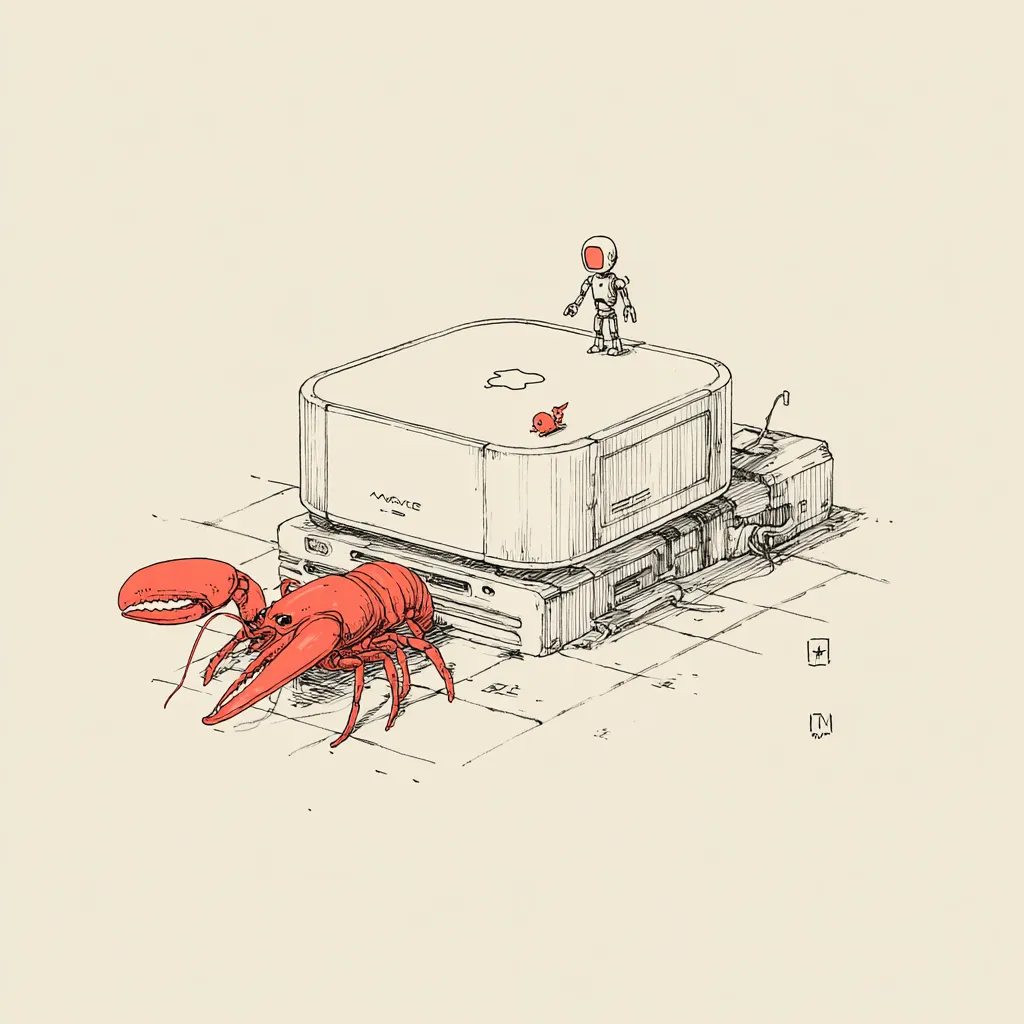
I run an AI assistant on a Mac Mini in my office 24/7.
I treat it like hiring a real assistant. Separate accounts. Separate workspace. Separate memory. Always on.
The important thing is this: a lot of OpenClaw setup advice on the internet is already stale.
If a guide tells you to use clawdbot, install via curl https://openclaw.ai/install.sh | bash, or configure direct iMessage as the default modern path, you’re reading an older snapshot. The current setup is cleaner than that.
This is the version I’d hand a non-technical founder today.
What OpenClaw actually is
OpenClaw is a local-first AI assistant runtime. You run the gateway on your own machine or VPS, connect the channels you already use, and give one or more agents access to tools, files, schedules, and memory.
That means AI stops being a browser tab and starts acting more like infrastructure.
As of April 2026, the official repo has a much broader product surface than early tutorials implied: channels, cron, skills, Canvas, companion apps, talk mode, and a full onboarding flow.
The one thing to know before you start
Use the official onboarding flow.
Do not piece this together from five different old blog posts unless you enjoy debugging renamed commands.
Legacy name note
clawdbot was the old CLI name. The current command is openclaw.
Before you start
You need:
- a machine that can stay on
- Node 24 recommended, or Node 22.16+
- one model provider you already trust and pay for
- one first channel to connect
You do not need to understand every config file up front.
Start with one machine, one agent, one channel, one real task.
Step 1: Install the CLI
The official README currently recommends either npm or pnpm:
npm install -g openclaw@latestor
pnpm add -g openclaw@latestIf you do not have Node yet, install Node 24 first from nodejs.org or through your package manager.
Step 2: Run onboarding
This is the setup command that matters:
openclaw onboard --install-daemonThat flow is designed to guide you through:
- gateway setup
- workspace setup
- model auth
- channel setup
- daemon installation
It is the recommended CLI path on macOS, Linux, and Windows via WSL2.
A heads-up about Anthropic / Claude Max
Before Step 3, read this.
On April 4, 2026 — the Saturday before Easter — Anthropic sent an email late on Friday announcing that, effective immediately, Claude Pro and Claude Max subscriptions could no longer be used to authenticate third-party tools like OpenClaw. Their stated reason was compute strain and prompt-cache hit rates on agentic harnesses. If you set this up expecting to just plug your $200 Max sub in via OAuth, you will hit this wall.
There is a workaround. Within hours of the announcement, the community (and then the OpenClaw docs themselves) converged on piping OpenClaw through the local claude CLI binary that’s already authenticated on your machine. From Anthropic’s side it looks like native CLI usage instead of a third-party harness, and the OAuth block doesn’t apply. You keep using your Max subscription, you don’t have to move to metered API billing, and your agents don’t feel lobotomized by a weaker default model.
So: if you were planning to use Claude Max, don’t panic. Just know that the setup path now goes through the local CLI adapter, not raw OAuth. Check the current OpenClaw docs for the claude adapter instructions — they’re what I follow.
If you already pay for an API key and don’t care about subscription pricing, this doesn’t affect you.
Step 3: Authenticate your model provider
The current official guidance is simple: prefer a current flagship model from the provider you already use and trust.
During onboarding, connect the provider you actually plan to pay for. Don’t overbuild a multi-model routing setup on day one.
My advice:
- if you already live in Anthropic and pay for Max, route through the local
claudeCLI adapter (see the note above) - if you already pay OpenAI, start there
- do not optimize this before you even have one working channel
Step 4: Pick your first channel
This is where people make the setup harder than it needs to be.
Do not wire up five channels in the first session. Pick one.
Best for work
Slack
Good if you already live in Slack and want the assistant where work happens.
Fastest start
Telegram or Discord
Usually the easiest way to prove the setup works before you add more opinionated channels.
Apple workflow
BlueBubbles
The official docs now position BlueBubbles as the recommended iMessage integration. Direct iMessage remains available, but it is the legacy path.
If your real goal is “I want this assistant on my phone,” BlueBubbles is the current path worth understanding, not older direct-iMessage-only guides.
Step 5: Verify the install
Run:
openclaw doctorThis is the command I wish more people used. It catches risky or incomplete setup states much earlier than waiting for a broken channel to surprise you later.
Then send the assistant one real message on the first channel you connected. Don’t move on until that works.
Step 6: Make it actually useful
A bare assistant is not the point. Context is.
My baseline setup still looks like this:
- separate machine identity
- separate workspace
- clear written instructions
- persistent memory files
- one real recurring job
If you want the assistant to remember decisions, preferences, and business context, pair OpenClaw with a simple file-based memory system or a dedicated brain layer like g-brain.
Step 7: Keep it healthy
The official update path is now:
openclaw update --channel stable
openclaw doctor
If you want more change velocity, there are also beta and dev channels. If you are non-technical, stay on stable until you have a reason not to.
What I would do if I were starting from zero today
- Install Node 24.
- Install
openclaw@latest. - Run
openclaw onboard --install-daemon. - Connect one provider.
- Connect one channel.
- Run
openclaw doctor. - Give the assistant one real recurring job.
That’s the setup loop.
Not “install everything.” Not “connect every service.” Just get one useful assistant live.
Related guides

Written by
Cathryn Lavery
Cathryn went from designing buildings to architecting products. She founded BestSelf, bought it back from private equity in 2024, and rebuilt it AI-native. She's currently building something new in AI. Little Might is where she doesn't have to keep it all in her head.
Related reading
-
Mar 16, 2026
How I built my wife a personal AI assistant on OpenClaw (and what actually took time)
-
Mar 10, 2026
Everything You Need Before Your AI Employee Starts
-
Feb 16, 2026
Why Your OpenClaw Agent Doesn't Remember You
-
Jun 10, 2026
How to set up multiple Macs for always-on AI agents
-
Jun 22, 2026
Your first AI loop should be for yourself (template included)